Many organizations rely on the Guided Access feature to secure and customize their mobile devices for various business purposes. While Guided Access is a well-known feature on Apple devices, Android has its equivalent known as Screen Pinning.
The Android version, however, offers restricted capabilities and might not be adequate for the majority of business applications. Fortunately, Mobile Device Management (MDM) may fill the gap and enable you to control Android smartphones and tablets similarly to Guided Access.
Understanding Guided Access
On iOS devices, there is a feature called "Guided Access" that enables users to limit access to particular apps and device features. Once engaged, users may select which services and apps are available and even set usage time limits.
This feature is highly beneficial in educational settings, where teachers can lock students into a specific app during classwork. It also proves valuable for parents by preventing accidental deletions or in-app purchases and limiting screen time for children.
Moreover, corporations can employ Guided Access to ensure strict security compliance by locking down specific applications. It empowers administrators to deactivate hardware buttons such as the home button, volume buttons, and touch input in specific screen areas.
By doing so, organizations can maintain greater control over device functionality, limiting potential security vulnerabilities. In addition to the device's standard passcode, Guided Access allows you to establish a separate passcode. This extra layer of security prevents unauthorized users from circumventing Guided Access and accessing restricted applications or device functions.
Enabling Guided Access on iOS
Activating Guided Access on an iOS device is straightforward. Simply navigate to Settings > General > Accessibility > Guided Access.
Once enabled, triple-click the lock button to access the Guided Access menu. From there, you can choose which device functions to restrict, including hardware buttons, and set a separate passcode to enhance security.
Guided Access on Android Devices
Guided Access is exclusive to Apple devices, but Android offers its counterpart, known as Screen Pinning. This feature, available on Android devices since version 5.0 Lollipop, allows users to lock a single app on the screen, preventing access to other applications.
However, Android's Screen Pinning has limitations compared to Guided Access. It lacks the ability to set a separate passcode and does not restrict control over volume keys, screen power, or specific screen areas.
Moreover, configuring each app for pinning is a manual process, making it impractical for businesses intending to use Android devices as unattended kiosks.
How to Achieve Guided Access on Android
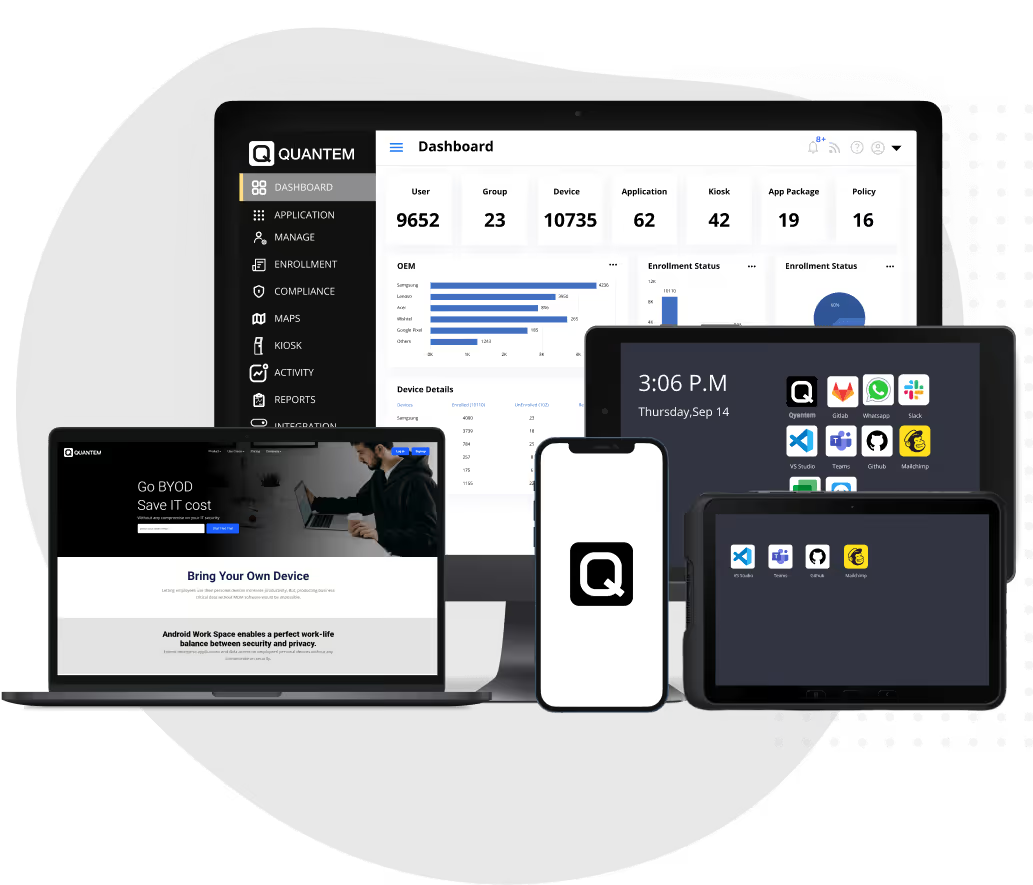
To emulate the Guided Access experience on Android devices, organizations can utilize MDM software to operate devices in kiosk mode. This approach overcomes the limitations of Android's screen pinning feature and offers the following benefits:
- Managing the User Experience: MDM offers the flexibility to operate Android devices in either single-app kiosk mode or multi-app kiosk mode, depending on your precise requirements. This level of control allows you to tailor the user experience to suit your organization's unique needs.
- Enhanced Flexibility: MDM goes beyond standard Android settings by enabling you to deactivate physical keys and hardware buttons on Android devices. This heightened control empowers you to dictate which apps and features are accessible, providing a more customized and secure user environment.
- Bolstered Security Measures: Unattended devices are inherently vulnerable to loss or theft, which can jeopardize sensitive information. MDM solutions come equipped with robust security features, including the ability to remotely locate lost devices and perform data wipes if necessary. These measures ensure that your organization's data remains protected even in adverse situations.
A Guide to Enable Guided Access on Android Using Kiosk Mode
Step 1: Login to your Quantem account and create a Kiosk group. Here, navigate to the Kiosk section.
Step 2: Click on create kiosk and enter a name. The user will be able to add applications of their choice - be it Single app or Multi apps. This is possible with the help of Kiosk system launcher.
Step 3: Users can also configure certain settings by clicking Next. Then user’s will be able to assign it to the kiosk group.
By following these steps and assigning the groups to the respective devices, users will be able to achieve the equivalent of Guided Access for Android.
Managing guided access across 100+ devices? See how Quantem does it.
To achieve Guided Access-like control on Android devices, enroll your mobile devices with MDM, add the necessary app, and apply a kiosk profile. This approach empowers you to manage hardware buttons and device functions from a centralized console, ensuring a secure and customized user experience for your organization's specific needs.
FAQs
Does Android have Guided Access?
Android does not have a feature called Guided Access like iPhone. However, Android offers similar functionality through Screen Pinning and Kiosk Mode, allowing users to lock a device to a specific app and restrict access to other device features.
How do I enable Guided Access on Samsung?
Samsung devices do not include Apple's Guided Access feature. To achieve a similar experience, enable Screen Pinning by going to Settings → Security and Privacy → More Security Settings → Pin App Windows. You can then pin an app from the Recent Apps screen.
What is Android kiosk mode?
Android Kiosk Mode is a device management feature that locks a device to one or more approved applications. It prevents users from accessing settings, notifications, the home screen, and unauthorized apps.
What is the Android equivalent of Guided Access?
The Android equivalent of Guided Access is Screen Pinning for personal use and Kiosk Mode for business-managed devices. Both features help restrict users to specific applications and limit access to device functions.
How do I lock an Android tablet to a single app?
You can lock an Android tablet to a single app using Screen Pinning or Android Kiosk Mode. Kiosk Mode provides more advanced controls and is commonly used in retail, education, healthcare, and self-service environments.
Can Samsung tablets run in kiosk mode?
Yes, Samsung tablets support kiosk mode through Samsung Knox and compatible Mobile Device Management (MDM) solutions. This allows organizations to restrict devices to approved apps and settings.
What is Screen Pinning on Android?
Screen Pinning is an Android feature that keeps a selected app on the screen until the user enters a PIN, password, or gesture to exit. It is useful for temporarily restricting access to a single application.
What is the difference between Screen Pinning and Kiosk Mode?
Screen Pinning is designed for temporary personal use and locks the device to a single app. Kiosk Mode offers enterprise-grade controls that can disable navigation buttons, settings access, notifications, and other device functions.
Can Android kiosk mode prevent users from exiting an app?
Yes, Android kiosk mode can prevent users from exiting an app, accessing device settings, opening other apps, or using system navigation controls, depending on the kiosk configuration.
Is Android kiosk mode free?
Basic kiosk functionality may be available through Android's built-in features, but advanced kiosk mode capabilities typically require Mobile Device Management (MDM) software or enterprise device management solutions.
Which Android devices support kiosk mode?
Most modern Android smartphones and tablets support kiosk mode. Enterprise-focused devices from Samsung, Lenovo, Zebra, Honeywell, and other manufacturers often include additional kiosk and device management features.
Can I use kiosk mode without an MDM solution?
Yes, you can use Android's built-in Screen Pinning feature without an MDM solution. However, for advanced restrictions, remote management, and large-scale deployments, an MDM platform is generally recommended.
Is Android kiosk mode secure?
Yes, when properly configured, Android kiosk mode is highly secure. It restricts access to unauthorized apps, settings, and system functions, making it suitable for business, educational, and public-facing devices.
What are common uses for Android kiosk mode?
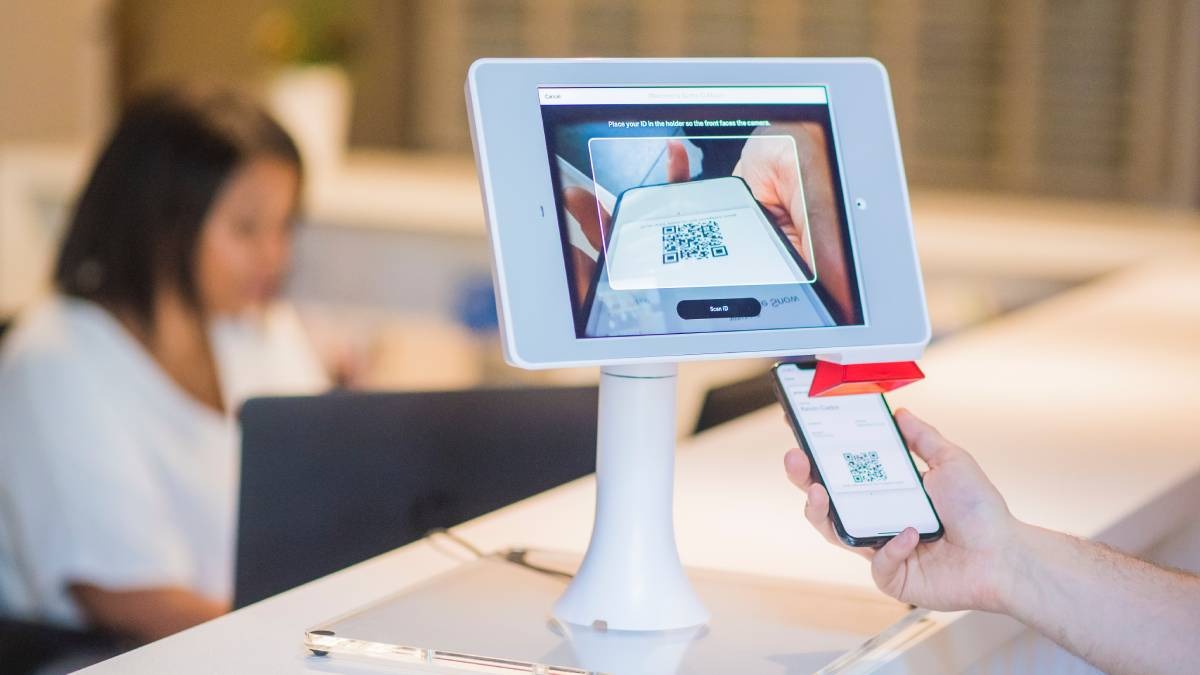
Android kiosk mode is commonly used for self-service kiosks, digital signage, point-of-sale systems, visitor check-ins, employee productivity devices, educational tablets, and customer feedback stations.
Can Android kiosk mode run multiple apps?
Yes, depending on the kiosk solution, Android devices can be configured in either single-app mode or multi-app mode, allowing access only to a predefined set of approved applications.

Get the latest blogs directly delivered to your mail fly arrow